
Selore Laptop Docking Station 3 Monitors
4.3Editor score
17-in-1 Expansion
Smart Weather Display
4K@60Hz Output
This guide compares the top 10 docking stations for 3 monitors to help you find the best triple display hub for your laptop setup in 2026.
Finding a reliable docking station for 3 monitors is essential for professionals who need expansive screen real estate. Whether you are trading stocks, editing video, or managing complex data, having three independent displays can significantly boost your productivity and workflow efficiency.
We evaluated ten top-rated models based on port variety, display support, charging power, and overall build quality. Our analysis covers both DisplayLink and MST technologies to ensure you choose a hub that works seamlessly with your specific laptop operating system and hardware capabilities.
Each pick below highlights key features, pros, cons, and ideal use cases to help you make an informed decision. Please note that prices and availability can change frequently, so always verify the current listings on the product pages before purchasing.
4.3Editor score

4.4Editor score

4.4Editor score
The following table provides a side-by-side comparison of the top ten docking stations evaluated for this guide. It highlights key specifications such as port counts, display capabilities, power delivery, and specific operating system compatibility to help you quickly identify the best fit for your needs.


The Plugable 13-in-1 docking station stands out as a robust solution for professionals needing triple monitor support across various platforms. It offers a balanced mix of ports, high power delivery, and reliable DisplayLink technology that enables true multi-monitor expansion even on modern MacBooks.
We may earn a commission when you buy through this link, at no additional cost to you.
Its standout feature is the ability to support three extended displays on Macs that normally only support one, thanks to the integrated DisplayLink manager. The 100W power delivery ensures your laptop remains charged during heavy use, and the included accessories make deployment quick and easy.
While the need to install drivers on Macs adds a small setup step, the performance benefits outweigh this minor inconvenience. Additionally, the lack of HDCP support means it is not suitable for streaming protected content like Netflix directly through the dock, which limits entertainment use.
This dock is ideal for enterprise IT, government deployments, and Mac users who need flexible triple-screen setups. If you prioritize reliability and universal compatibility over plug-and-play simplicity on macOS, this is the top choice for your workstation.
DisplayLink drivers allow three extended monitors on Mac M-series chips, overcoming native hardware limits for serious multitasking.
Compliance with TAA and Section 889 standards plus lifetime support makes it perfect for business and government IT departments.
We may earn a commission when you buy through this link, at no additional cost to you.
Selore offers an affordable entry into triple monitor setups with its 17-in-1 vertical docking station. It features unique smart display functions that show weather and charging status, making it both functional and visually interesting on a clutter-free desk.
We may earn a commission when you buy through this link, at no additional cost to you.
The inclusion of a privacy button that instantly turns off all external monitors is a thoughtful touch for professionals working in shared spaces. With 100W power pass-through and high-speed USB 3.1 ports, it handles daily tasks efficiently without breaking the bank.
Note that Mac users are limited to mirroring mode only due to OS constraints, so this is primarily a Windows solution. You will also need to supply your own power adapter, which adds a minor upfront cost to the total setup.
If you need a feature-rich yet budget-friendly dock for Windows laptops that goes beyond basic connectivity, this Selore model delivers excellent value with its smart features and solid build quality.
The built-in LCD syncs weather and time via Wi-Fi, turning your dock into a useful secondary information panel.
Double-press the power button to instantly black out all connected screens, protecting your data without locking the OS.
We may earn a commission when you buy through this link, at no additional cost to you.
TobenONE delivers premium performance with an 18-port DisplayLink hub capable of driving up to four independent displays. This makes it a powerhouse for traders, video editors, and developers who need maximum screen real estate from a single connection.
We may earn a commission when you buy through this link, at no additional cost to you.
The included 120W power adapter ensures stable operation even under heavy loads, providing up to 100W to your laptop and 18W to your phone. With 10Gbps data transfer speeds and extensive port variety, it handles every peripheral and workflow you throw at it.
As with most DisplayLink solutions, you must install drivers, and streaming services like Netflix may not work due to HDCP restrictions. However, for productivity tasks that demand high resolution and multi-screen capabilities, these trade-offs are minimal compared to the utility provided.
This dock is best for power users with Windows, macOS, or ChromeOS systems who need the highest number of supported displays and reliable connectivity without compromise.
On compatible Windows laptops, you can run four 4K displays, offering unmatched productivity for complex data analysis.
The 120W adapter provides ample headroom to charge your laptop, dock, and phone simultaneously without throttling performance.
We may earn a commission when you buy through this link, at no additional cost to you.
TobenONE's 18-in-1 station is designed to turn your laptop into a complete desktop replacement with nine USB ports. This level of connectivity is perfect for offices with multiple peripherals or students who need to connect numerous drives and accessories.
We may earn a commission when you buy through this link, at no additional cost to you.
It supports triple 4K@60Hz displays, ensuring smooth visuals for design work or multimedia consumption. The dock emphasizes cable management and desk organization, making it a tidy solution for home workspaces or busy office environments.
Note that this model is optimized for Windows and ChromeOS and is not recommended for Mac users. You will also need to provide a 65W+ power adapter separately, which is a common oversight when purchasing this hub.
If you prioritize the sheer number of USB connections and high refresh rate display support for Windows systems, this dock offers robust utility and strong performance for productivity tasks.
Nine dedicated USB ports eliminate the need for extra hubs, allowing direct connection of mouse, keyboard, drives, and more.
Triple 4K at 60Hz ensures fluid cursor movement and crisp video playback, ideal for creative professionals.
We may earn a commission when you buy through this link, at no additional cost to you.
This Plugable model is engineered for hybrid teams needing consistent performance across diverse fleets of laptops. Its enterprise-grade build and lifetime technical support make it a safe choice for organizations deploying to hot-desking workspaces.
We may earn a commission when you buy through this link, at no additional cost to you.
Using both DisplayLink and USB-C Alt Mode, it bypasses native display limits on Apple Silicon Macs while supporting Windows and ChromeOS natively. This flexibility ensures your IT department can standardize on one dock for various hardware types.
It does not support protected content playback, which may limit personal entertainment use on your workstation. Additionally, Linux systems are not compatible, so it is strictly a Windows, macOS, or ChromeOS solution.
If you need a reliable workhorse that ensures stable connectivity and easy deployment across multiple brands, this dock is a solid investment for professional or organizational use.
Compatible with Dell, HP, Lenovo, and MacBook systems, making it versatile for diverse IT environments.
Direct access to North American engineers ensures quick resolution of any setup or connectivity issues.
We may earn a commission when you buy through this link, at no additional cost to you.
HoDo offers a budget-friendly option for those needing basic triple display capabilities without the cost of premium models. Its eight ports include HDMI, DisplayPort, and VGA, giving you flexibility to mix older and newer monitors easily.
We may earn a commission when you buy through this link, at no additional cost to you.
The 100W power delivery is safe for most modern laptops, ensuring they stay powered while connected. However, the USB 2.0 ports limit data transfer speeds, which might slow down large file transfers or external drive usage.
Be aware that connecting the VGA port can reduce overall resolution to 1080p on all displays, so for best visual quality, use only HDMI and DisplayPort. This dock is best for those who have legacy monitors to integrate into a triple setup.
If you are looking for a simple, cost-effective way to extend your screens and don't need high-speed USB, this adapter does the job for light productivity.
The VGA port allows connection to older projectors or monitors, extending the life of existing office hardware.
We may earn a commission when you buy through this link, at no additional cost to you.
Acer provides a robust 13-in-1 hub with a premium aluminum design that helps dissipate heat effectively. It includes a high-power 110W adapter, ensuring enough headroom to power your laptop, dock, and connected peripherals simultaneously.
We may earn a commission when you buy through this link, at no additional cost to you.
The security slot allows you to lock the dock to your desk, adding a layer of physical protection in shared office or dorm environments. Dual HDMI plus one DisplayPort supports three independent screens on Windows via MST technology.
The extra rear USB-C port is for data only and does not support video or charging, so plan your cable management accordingly. Mac users are limited to mirroring mode, which restricts utility for Apple ecosystems.
This is a reliable, well-built choice for Windows users who value physical security and thermal performance in a daily driver dock.
The aluminum housing keeps the device cool during extended sessions, preventing throttling and extending lifespan.
We may earn a commission when you buy through this link, at no additional cost to you.
This Selore model features a convenient one-touch button that switches between mirror and extend modes instantly. This physical control simplifies workflow changes without needing to navigate through OS settings menus.
We may earn a commission when you buy through this link, at no additional cost to you.
It supports 10Gbps data transfer, which is significantly faster than standard USB 3.0 ports, allowing quick offloading of photos and videos from SD cards. The 100W PD ensures your laptop stays charged during intensive tasks.
Mac users are limited to two screens total, which may not suffice for complex multi-monitor workflows. Always verify your laptop supports DisplayPort Alt Mode or Thunderbolt before purchasing to ensure triple display functionality.
For Windows users wanting easy screen control and fast data access, this compact and efficient hub is a strong contender.
The hardware button bypasses software menus for quick mode switching, saving time during presentations.
We may earn a commission when you buy through this link, at no additional cost to you.
The UD-MSTH3 offers true plug-and-play functionality for Windows 11 and newer systems, eliminating the need for driver installations. It uses MST to deliver dual 4K or triple 1080p/4K setups seamlessly.
We may earn a commission when you buy through this link, at no additional cost to you.
A standout feature is the 2.5 Gigabit Ethernet port, which provides faster wired internet speeds than standard 1 Gigabit docks. Additionally, a dedicated 30W USB-C port allows you to charge a phone while the main 100W port charges your laptop.
It is not recommended for Mac or ARM-based systems, so it is a specialized tool for Windows Chromebook users. If you need high-speed network connectivity without software overhead, this dock is efficient and reliable.
For those prioritizing simplicity and network speed in a Windows-centric environment, this is a highly functional option.
The 2.5GbE port supports faster cloud uploads and downloads, crucial for remote workers.
We may earn a commission when you buy through this link, at no additional cost to you.
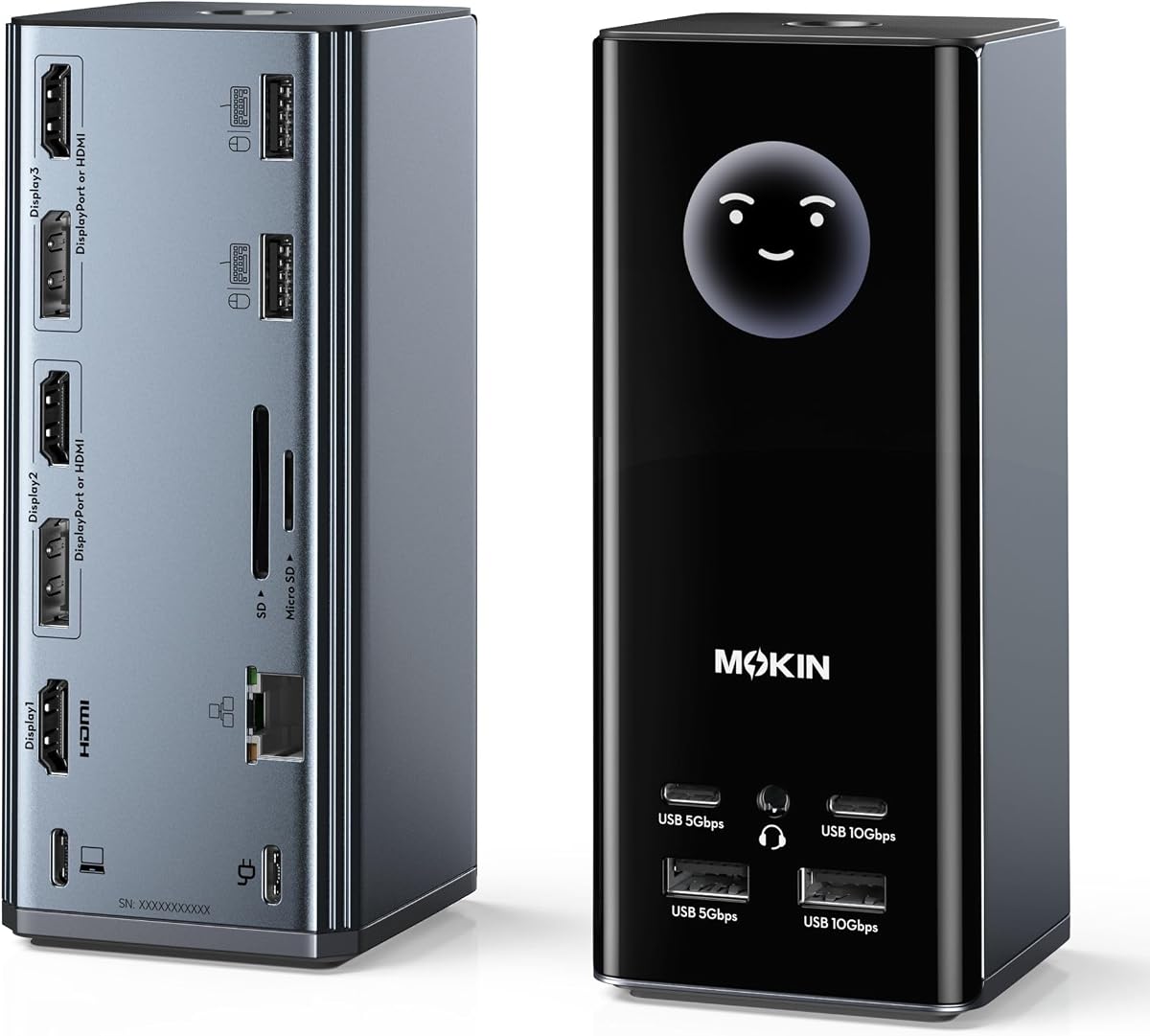
MOKiN distinguishes itself with a visual intelligence LCD screen that shows charging wattage and connection status in real time. This smart feature lets you verify everything is working correctly at a glance.
We may earn a commission when you buy through this link, at no additional cost to you.
It supports triple 4K displays and combines HDMI and DP ports for flexible setups. The privacy lock button doubles your screens instantly, making it a thoughtful choice for open-office environments.
Modifying the display settings might require firmware updates, adding a slight setup layer. Mac support is limited, focusing the product more on Windows power users seeking smart features.
If you want a dock that actively monitors its status and keeps your workspace safe, this model offers a unique and practical interface.
See exactly how much power is passing through which ports without opening software apps.
We may earn a commission when you buy through this link, at no additional cost to you.
Choosing the right docking station involves considering your operating system, display requirements, and peripheral needs. This guide breaks down the essential factors to ensure your investment delivers maximum productivity.
Windows laptops typically support Multi-Stream Transport (MST) for triple monitors via USB-C. Macs often require DisplayLink drivers to extend beyond one external screen. Always verify if a dock is optimized for your OS to avoid limitations.
Check the product description for specific macOS warnings, as many hubs default to mirror mode only on Apple Silicon.
Look for HDMI 2.0 or 2.1 ports to support 4K@60Hz. Some docks mix HDMI and DisplayPort for better compatibility. Ensure the total bandwidth supports your desired resolution and refresh rate.
Triple 4K displays require high bandwidth; if not supported, resolutions may drop to 1080p or 30Hz.
Most modern laptops require 65W or 100W to charge while in use. A dock with 100W pass-through ensures your battery stays full during heavy tasks. Check if the power adapter is included or sold separately.
For gaming or rendering, ensure the wattage matches your laptop's original charger to maintain performance.
USB 3.1 Gen 2 ports support 10Gbps speeds, ideal for external SSDs. USB 3.0 offers 5Gbps, while USB 2.0 is slow and best for keyboards. Match the port speeds to your storage needs.
High-speed ports reduce lag when editing large files directly from external drives.
Built-in Gigabit Ethernet provides stable internet without relying on Wi-Fi. Some newer models offer 2.5GbE for faster local network speeds. This is crucial for remote work or large file transfers.
A wired connection reduces latency for video calls and cloud-based applications.
Aluminum housings dissipate heat better than plastic. Vertical docks save desk space. Ensure the base has non-slip materials to prevent tipping when cables are plugged in.
A compact design reduces desk clutter and makes it easier to transport between locations.
Look for lifetime support or multi-year warranties. Reliable brands offer technical teams to help troubleshoot issues quickly. Check return policies in case of compatibility issues.
Strong support ensures you get help if drivers fail or ports stop working unexpectedly.
Some docks include smart displays for weather or status, privacy buttons, or security slots. These features add convenience and safety. Evaluate if these extra functions are worth the added cost.
A privacy button can be a lifesaver in public spaces or open offices.
Connect the dock to a reliable power source before plugging it into your laptop. If you need an external adapter, ensure it meets the wattage requirements. This prevents performance drops or unexpected disconnections.
Use a single high-quality USB-C or Thunderbolt cable to link your laptop to the dock. Avoid daisy-chaining multiple cables, as this can introduce instability. A secure connection ensures consistent video and data transmission.
Keep the dock in a well-ventilated area to prevent overheating. Dust can accumulate in ports, so periodically clean them gently with compressed air. If you store the dock for a long time, unplug it to preserve the battery life if applicable.
Yes, but most Macs with Apple Silicon support only one external display natively. To get three screens, you must use a dock with DisplayLink technology and install the DisplayLink Manager drivers. Without these drivers, you will likely be limited to mirroring.
It will work if your laptop has a full-featured USB-C port that supports DisplayPort Alt Mode or Thunderbolt. Check your laptop's manual to confirm video output support. If you are unsure, look for docks that list your specific laptop model as compatible.
It depends on the model. Some docks come with a high-wattage adapter included, while others do not. Always check the product details and box contents. If not included, purchase a USB-C charger with at least 65W output.
Many modern docks support 4K@60Hz for the first monitor and 4K@30Hz for subsequent ones. If you need 4K@60Hz on all three screens, ensure your laptop and dock support Display Stream Compression (DSC). Check the specs for detailed resolution limits.
While possible, DisplayLink docks are optimized for productivity, not gaming due to slight latency. MST docks may perform better for gaming on Windows. However, gaming is best served by a dedicated GPU; this setup is ideal for work and casual tasks.
This often happens due to loose cables, insufficient power, or incompatible drivers. Ensure your power adapter is plugged in and matches the wattage requirements. Update your graphics drivers and reinstall DisplayLink if necessary to resolve instability.
Yes, most docks have multiple USB ports for connecting external drives. For fastest speeds, use the USB 3.1 ports. If you need more ports, ensure the dock provides enough USB slots to avoid buying additional hubs.
Most reputable brands offer at least a one-year warranty, and some offer lifetime support. Check the product listing for warranty terms. If you buy from Amazon, review the return window in case you encounter compatibility issues.
Selecting the right docking station is key to unlocking your laptop's full potential. The Plugable models lead in versatility with DisplayLink tech for Mac users, while the Selore options offer great value for Windows users wanting smart features.
Prioritize power delivery and OS compatibility when making your choice. Ensure the dock supports your desired resolution and port types to avoid limitations. Remember that specific models are optimized for certain systems, so read the compatibility notes carefully.
Prices and stock fluctuate frequently, so verify current listings before purchasing. We hope this guide helps you find the perfect multi-monitor setup to elevate your workspace and boost productivity.