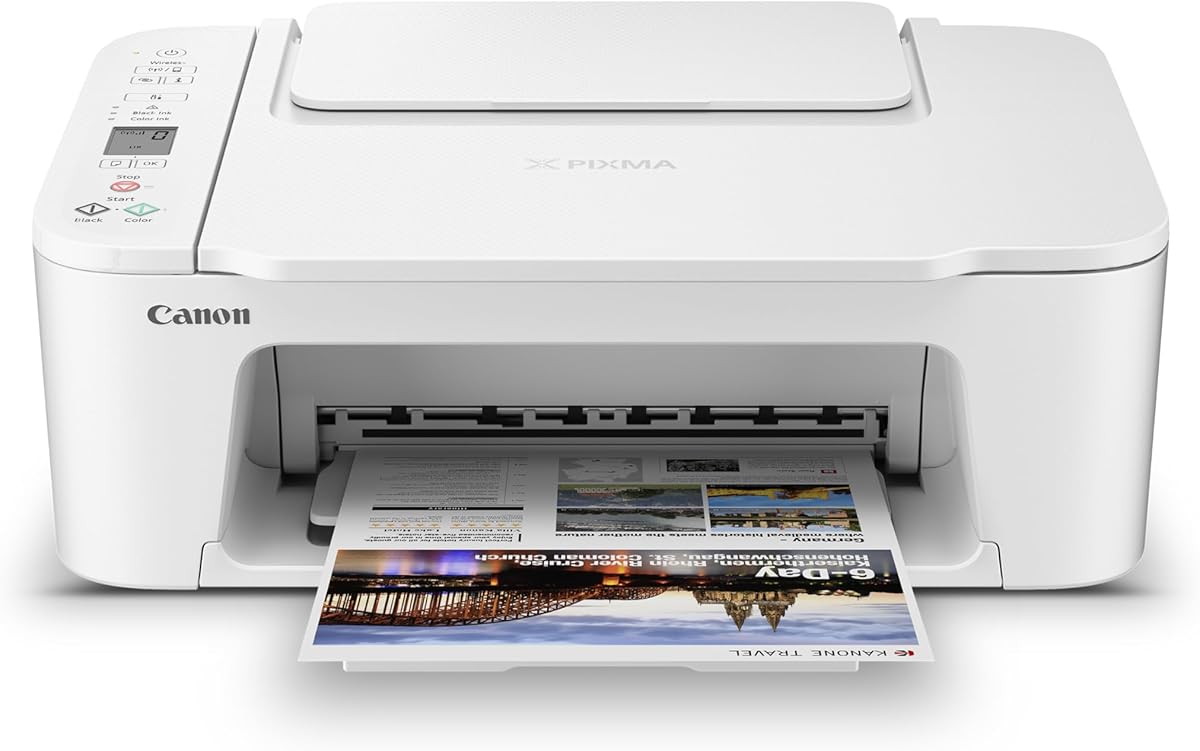
Canon PIXMA TS3720
4.0Editor score
Built-in Chromebook support
Simple wireless setup
Compact home design
Choosing a printer that works seamlessly with your Chromebook is essential for students and professionals alike. You need reliable wireless connectivity and easy setup to ensure your documents print without frustrating connection errors or driver issues.
We evaluated ten leading models based on their compatibility features, print quality, and overall value for home or office environments. Our analysis focuses on how well each device integrates with Chrome OS to deliver a smooth and efficient printing experience.
Each pick highlights key strengths and trade-offs to help you match a printer to your specific needs. Keep in mind that prices can fluctuate frequently so check current listings before making your final purchase decision.
4.0Editor score

4.2Editor score
4.2Editor score
As an Amazon Associate we earn from qualifying purchases.
This table provides a side-by-side look at the core specifications and key features of every model we reviewed to help you compare them quickly and easily.


The Canon PIXMA TS6520 stands out as a top choice for Chromebook users seeking a balanced mix of performance and features. With a strong rating from verified buyers it delivers crisp text and vibrant colors suitable for both documents and photos.
We may earn a commission when you buy through this link, at no additional cost to you.
Its hybrid ink system ensures sharp black text while providing vivid color results without compromising speed. The dual-band Wi-Fi keeps your connection stable during large print jobs and the intuitive OLED display makes monitoring ink levels effortless.
While the paper tray capacity is modest for busy offices it remains perfect for home use. Ink costs can accumulate over time but the quality of output often justifies the expense for those prioritizing clarity and consistency.
This printer is ideal for students or home workers who need reliable wireless printing from their Chromebook. Its compact footprint fits easily on a desk while delivering professional quality results on demand.
The hybrid ink system delivers sharp text and vivid colors for a professional look on every page.
Dual-band Wi-Fi ensures a stable connection so you can print directly from your Chromebook without interruptions.
We may earn a commission when you buy through this link, at no additional cost to you.
The Canon PIXMA TS3720 offers an affordable entry point for Chromebook owners needing basic printing tasks like schoolwork or home documents. Its explicit compatibility with Chrome OS removes the guesswork when setting up your device.
We may earn a commission when you buy through this link, at no additional cost to you.
Setup is streamlined to get you printing in minutes rather than hours. The intuitive LCD screen guides you through menus and the dual-band Wi-Fi ensures a consistent connection with your Chromebook on the same network.
Print speeds are modest compared to higher-end models which may slow you down during bulk jobs. However for occasional use the trade-off between cost and performance is well justified for budget-conscious buyers.
Buy this printer if you need a reliable and simple device for everyday tasks without breaking the bank. It handles scanning copying and printing with ease making it a versatile choice for any home.
Get running quickly with a streamlined setup process that requires minimal technical knowledge or effort.
Ideal for those who need basic functions without paying for features they will never use regularly.
We may earn a commission when you buy through this link, at no additional cost to you.
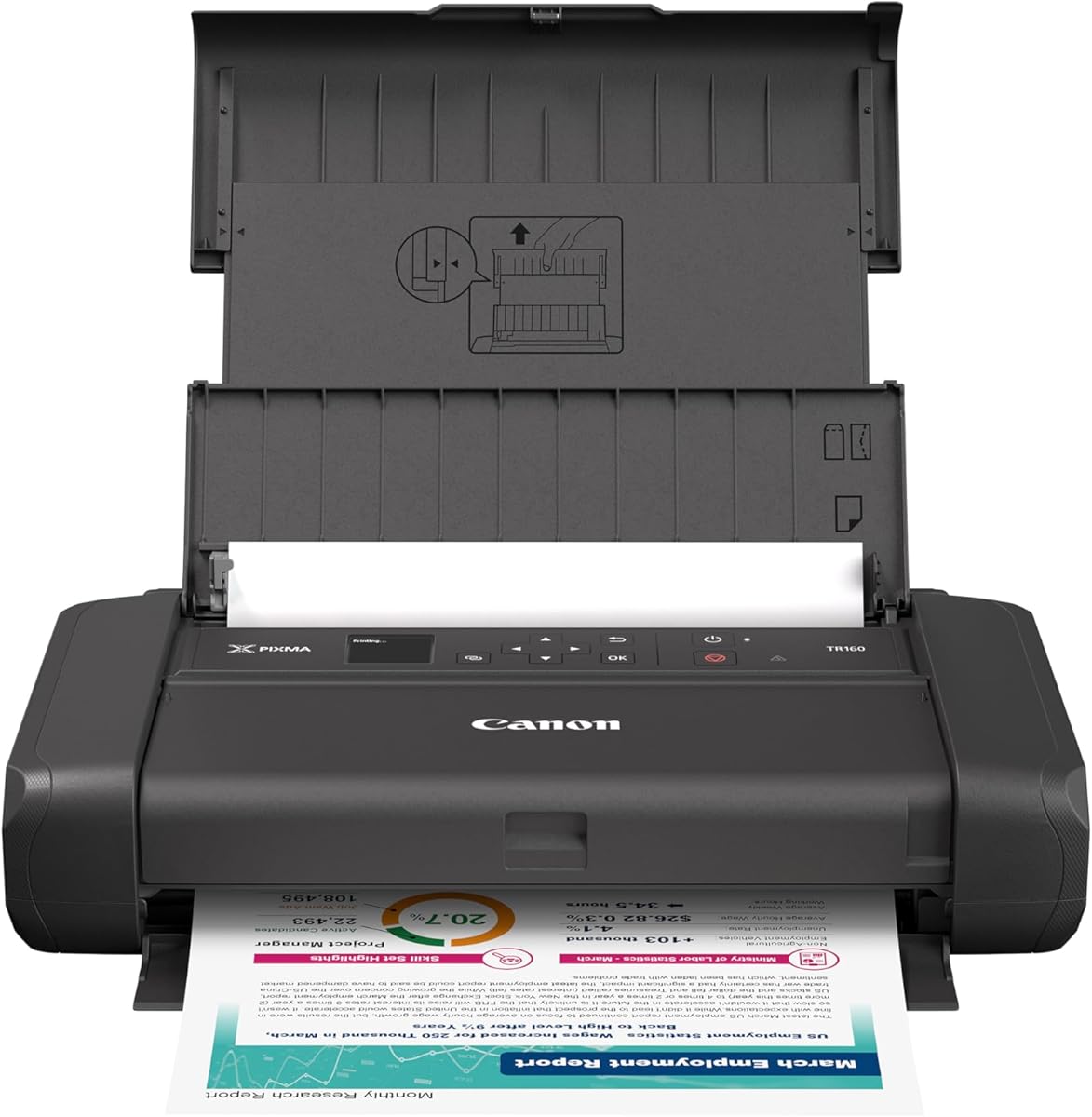
The Canon PIXMA TR160 redefines what a Chromebook compatible printer can be by offering full functionality in a portable package. This device is perfect for users who travel frequently or need to print in various locations.
We may earn a commission when you buy through this link, at no additional cost to you.
Its 5-color hybrid ink system produces rich vibrant photos and sharp documents that rival stationary models. The wireless direct mode allows you to print without a router ensuring you are never stuck without output options.
While the price is higher than standard home printers the mobility and print quality justify the investment for professionals. The small size means you must manage media carefully but it fits easily in a backpack or bag.
Choose this model if you value flexibility and high-quality output on the go. It transforms your Chromebook into a mobile printing station ready for clients or school anywhere you roam.
This lightweight printer fits in a backpack and pairs easily with your Chromebook using wireless direct technology.
The 5-color ink system delivers vivid details and rich color for photos and documents that stand out.
We may earn a commission when you buy through this link, at no additional cost to you.
The HP DeskJet 2955 brings modern AI capabilities to the table for Chromebook users who want precise printing from web pages and emails. This smart feature saves ink by removing unnecessary content before printing.
We may earn a commission when you buy through this link, at no additional cost to you.
With dual-band Wi-Fi you can connect seamlessly to your Chromebook for quick tasks like scanning or copying. The intuitive LCD panel makes basic navigation simple and the compact design fits in small home spaces easily.
Print speeds are moderate so large jobs may take longer than expected. The instant ink trial offers savings initially but you must manage the subscription to avoid unexpected fees later down the road.
This printer works well for casual home users who value smart features and eco-friendly design. If you want a device that adapts to your workflow automatically this model is worth considering.
HP AI technology removes unwanted content from web pages so your prints look cleaner and waste less ink.
Constructed with recycled plastics and certified by ENERGY STAR this printer helps reduce your environmental footprint.
We may earn a commission when you buy through this link, at no additional cost to you.
The Canon PIXMA TS4320 provides a balanced solution for households needing a dependable printer for Chromebook integration. It offers standard functions like printing copying and scanning with a focus on reliability and ease of use.
We may earn a commission when you buy through this link, at no additional cost to you.
Its hybrid ink system ensures crisp text for school documents and vibrant colors for family photos. The dual-band Wi-Fi connection remains stable during use and mobile printing apps make it simple to send jobs from your phone.
While the interface is basic it gets the job done without unnecessary complexity. Some users might find the build feels lightweight but for the price point this model delivers solid everyday performance.
Pick this printer if you need a straightforward device that works well with Chrome OS. It is a great choice for families who want decent quality without paying for advanced features.
This printer handles both text documents and photos well with a hybrid ink system that delivers consistent results.
Certified by EPEAT Silver and ENERGY STAR this model helps you reduce your environmental footprint while working.
We may earn a commission when you buy through this link, at no additional cost to you.
The Canon PIXMA TR4720 stands out for home offices needing fax capabilities alongside standard printing for a Chromebook. The built-in document feeder simplifies scanning and copying multiple pages without manual intervention.
We may earn a commission when you buy through this link, at no additional cost to you.
You can track ink levels via Alexa which adds a layer of convenience for busy users. The 100-sheet tray handles regular jobs without constant refilling and the wireless connection is robust enough for daily tasks.
Missing automatic duplex printing means more paper waste compared to other models. However the inclusion of fax and an auto document feeder makes this a practical choice for remote workers.
Consider this printer if you need fax services and automated scanning in a compact package. It bridges the gap between basic home units and full office features effectively.
The auto document feeder allows you to scan multiple pages quickly which speeds up your workflow significantly.
Connect to Alexa to receive alerts when ink is low and reorder supplies without manual checks.
We may earn a commission when you buy through this link, at no additional cost to you.
The Brother Work Smart 1360 offers impressive speeds for black document printing which is ideal for high-volume Chromebook tasks like thesis or reports. Its design focuses on productivity and ease of use for everyday home office needs.
We may earn a commission when you buy through this link, at no additional cost to you.
Cloud integration allows you to print directly from apps like Google Drive and Dropbox which is perfect for Chromebook users. The color display is intuitive and the 150-sheet tray reduces how often you need to add paper.
While color prints are decent they are slower than black documents. The printer is compact but might feel slightly bulkier than ultra-slim models which could impact placement in very small desks.
Choose this printer if speed for text documents is your priority. It delivers a solid mix of features and performance for those who print a lot of homework or work files.
Print from popular cloud apps directly through the printer menu to save time on file transfers.
The 150-sheet paper tray allows you to handle larger jobs without frequent refills or interruptions.
We may earn a commission when you buy through this link, at no additional cost to you.
The Canon PIXMA TR7120 excels at efficiency with features that streamline printing from your Chromebook for daily tasks. Its seamless workflow design ensures you can handle documents and photos without wasting time on setup.
We may earn a commission when you buy through this link, at no additional cost to you.
Automatic duplex printing saves paper and reduces bulk in your stack of pages. The OLED display gives you quick status updates and the hybrid ink system produces vibrant results that look great on screen.
While the price is higher than basic models the added convenience justifies the cost for many users. Some features may take time to learn but they enhance the overall experience once you are familiar with them.
This printer is a smart choice for hybrid workers who need reliable performance. It balances speed quality and cost to provide a versatile solution for modern home offices.
Save time and paper with automatic two-sided printing that handles your documents without manual flipping.
The OLED screen makes it easy to monitor ink and status so you can manage your print jobs quickly.
We may earn a commission when you buy through this link, at no additional cost to you.
The HP Envy 6155 delivers outstanding fidelity for Chromebook users who need prints to match their screen colors exactly. Its True-to-Screen tech ensures that what you see is what you get on paper for vibrant results.
We may earn a commission when you buy through this link, at no additional cost to you.
The HP AI feature optimizes layouts for emails and web pages which saves ink and improves readability. With a 2.4-inch touchscreen navigating settings is simple and the dual-band Wi-Fi keeps connections stable during heavy use.
Firmware updates may restrict non-HP cartridges so plan your ink strategy accordingly. The sustainability design is a plus but you must manage the instant ink trial to avoid unwanted charges after it expires.
Choose this printer for premium color results and smart features. It is a great fit for creatives and students who need high-quality visuals alongside reliable document printing.
This technology ensures your prints match your screen colors perfectly for professional-quality results every time.
HP AI removes unwanted content from pages to save ink and ensure your documents look neat and tidy.
We may earn a commission when you buy through this link, at no additional cost to you.
The HP DeskJet 4355 offers a practical mix of convenience features for Chromebook owners looking for a home printer. Its auto document feeder makes scanning multi-page files easier than manual models.
We may earn a commission when you buy through this link, at no additional cost to you.
HP AI optimization helps refine your print layouts which is useful for school or work documents. The icon LCD provides straightforward navigation and the compact design fits well in small spaces.
Ratings are mixed compared to other models which suggests some users face connectivity or reliability issues. However for light use the features provided are solid and the recycled materials add to its appeal.
This printer is best for users who need occasional printing with smart layout features. It is a reasonable option if you want an auto feeder without spending on a high-end model.
This feature lets you scan and copy multiple pages automatically so you do not have to reload paper.
Made with recycled plastics and certified as ENERGY STAR this printer helps reduce your environmental impact.
We may earn a commission when you buy through this link, at no additional cost to you.
Finding the right printer for your Chromebook requires understanding key compatibility and performance factors.
Ensure the printer explicitly supports Chrome OS to avoid driver installation errors. Most modern models use Google Cloud Print protocols or Mopria standards which work seamlessly with Chromebooks.
Look for products that mention Chromebook support in their specifications to guarantee plug-and-play functionality.
Dual-band Wi-Fi is essential for stable connections in homes with multiple devices. This feature allows you to connect on 2.4GHz or 5GHz bands depending on your network setup.
Check if the printer supports AirPrint or Mopria services as these enable printing without installing extra apps on your Chromebook.
Evaluate the pages per minute (PPM) rating to match your typical document volume. Higher PPM means less wait time for large batches of schoolwork or office reports.
Prioritize models with high DPI resolution for crisp text and vibrant colors if you frequently print images or charts.
The size of the input tray affects how often you need to refill paper. A larger tray like 100 sheets is better for frequent printing while 60 sheets suits occasional use.
Consider if the printer supports borderless printing or envelopes if you need specific paper formats for projects or invitations.
Features like automatic document feeders or duplex printing save time and reduce manual effort. These tools are valuable for scanning multi-page documents or printing double-sided pages.
Touchscreen displays provide easier navigation than basic LCD screens allowing you to change settings directly on the device.
Calculate the cost of replacement cartridges over time to understand the long-term value. Some printers offer subscription services that deliver ink automatically but require a monthly fee.
Look for models with energy-efficient modes or recycled materials to lower your environmental impact and utility costs.
A compact footprint ensures the printer fits on your desk without crowding your workspace. Portability might also be a factor if you move your device between rooms or offices.
Choose a design that matches your aesthetic preferences while ensuring it provides enough clearance for paper trays and vents.
Check the warranty period and support options to ensure help is available if issues arise. A longer warranty indicates confidence in the product's durability and reliability.
Read user reviews to learn about common technical issues and how responsive the manufacturer is to customer inquiries.
Start by connecting the printer to your home Wi-Fi network using the control panel or mobile app. Once connected add the device in your Chromebook settings to enable seamless printing from any browser tab.
Keep your firmware updated to maintain compatibility and fix potential bugs that could disrupt printing. Regularly clean the print heads and rollers using the built-in maintenance tools to ensure consistent output quality.
Use genuine ink cartridges or approved alternatives to avoid clogging or damaging the internal components. Store paper in a dry place to prevent jams caused by humidity or warped sheets.
Most modern HP printers support Chrome OS via Mopria or Google Cloud Print protocols. However it is best to check specific product details to confirm full compatibility before purchasing.
Open the document in Chrome and press Ctrl P to access the print dialog. Select your connected printer from the list and click Print to send the job wirelessly.
Yes if the printer has a scanning function and supports cloud scanning you can send files directly to your Google Drive or local storage on the Chromebook.
Restart both the printer and your Chromebook then verify they are on the same Wi-Fi network. Ensure the printer is visible in network settings and reinstall drivers if necessary.
Many manufacturers offer dedicated mobile apps for management but Chrome OS relies on built-in drivers. You usually do not need extra apps unless you want remote features like status alerts.
Absolutely supported printers handle photo paper and borderless printing. Just select the correct paper type in the print dialog to ensure the best quality for your images.
We reviewed ten top printers that offer reliable performance for Chromebook users in various settings. The Canon PIXMA TS6520 stands out for its balance of quality and features while the TS3720 offers an affordable option for basic needs.
Prioritize wireless stability and paper capacity when selecting a model to match your specific workflow requirements. Investing in a printer with smart features like duplexing or AI optimization can save you time in the long run.
Remember to check current pricing and availability before making your final decision since deals change frequently. These models provide solid foundations for turning your Chromebook into a productive printing station today.