
Calibrite Display 123
4.0Editor score
Easy three-step workflow
Supports up to two displays
USB C connection included
This guide compares the top 10 Colorimeter for Monitor Calibration tools for professionals and creators seeking accurate color reproduction in photo and video
Accurate color is essential for photographers and video editors who need to trust their screens. A reliable Colorimeter for Monitor Calibration ensures your display matches reality and delivers consistent results across devices.
We evaluated ten leading tools based on sensor quality, software features, display support, and ease of use. Our comparison covers options for budget buyers, OLED enthusiasts, and full workflow professionals.
Each pick highlights key strengths and ideal use cases to help you choose the right tool. Prices may vary over time, so check current listings before purchasing your next calibration solution.
4.0Editor score
4.5Editor score

4.0Editor score
This table compares key features of all ten top-rated monitorsimeters. Use it to quickly identify which tool matches your display type and workflow requirements.


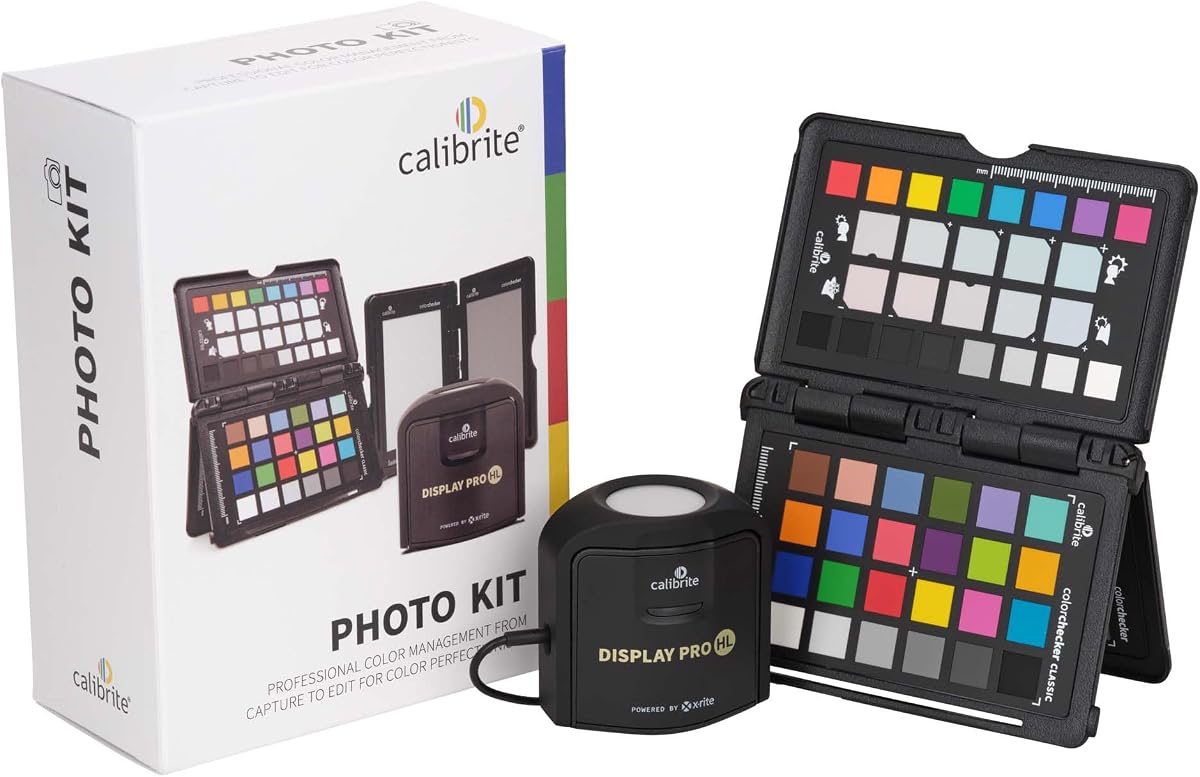
The Calibrite Photo Kit combines a high-luminance monitor colorimeter with a camera profiling tool. It holds a 4.5 rating for creating a seamless workflow from RAW capture to accurate display editing.
We may earn a commission when you buy through this link, at no additional cost to you.
Its Display Pro HL sensor handles mini LED, OLED, and Apple XDR panels effectively. The included Passport Photo 2 allows custom camera profiles to ensure white balance and exposure stay consistent.
While the kit costs more than a standalone meter, it eliminates guesswork across your entire pipeline. The learning curve is manageable and the PROFILER software supports detailed adjustments.
Photographers seeking reliable end-to-end color management will find this kit worth the investment. It bridges the gap between capture accuracy and display trust better than most tools.
Custom camera profiles ensure your RAW files reflect true scene colors before you even touch your monitor.
High luminance calibration ensures OLED and mini LED panels show accurate highlights without blooming.
We may earn a commission when you buy through this link, at no additional cost to you.
Designed for HDR enthusiasts, the Display Plus HL measures up to 10000 nits. It targets professionals needing precise calibration for high luminance monitors and projector setups.
We may earn a commission when you buy through this link, at no additional cost to you.
Its advanced HL sensor ensures highlights and blacks remain accurate even on XDR displays. The PROFILER software offers basic and advanced modes for shared presets across teams.
The price reflects its professional-grade capabilities but may be overkill for casual users. Still, for video grading work, few tools match its dynamic range accuracy.
Choose this if you work with high brightness monitors and require broadcast-standard tonal curves. It provides the tools needed to trust your grading decisions.
Measuring up to 10000 nits ensures even the brightest HDR content is calibrated with precision.
Shared presets and multi-monitor profiling keep color consistent across a studio environment.
We may earn a commission when you buy through this link, at no additional cost to you.
The Display 123 offers reliable calibration without overwhelming settings. It guides users through a three-step process to quickly achieve accurate color on standard displays.
We may earn a commission when you buy through this link, at no additional cost to you.
Its compact body fits easily on any screen and supports dual monitor setups. The before and after check helps confirm improvements without needing extra tools.
While it lacks HDR support, it is perfect for photo editing on standard panels. The price makes it accessible for creators just starting to manage color.
Ideal for hobbyists needing consistent viewing across two screens. It balances simplicity with performance better than competitors in the same range.
The guided workflow removes technical barriers, letting you calibrate confidently in minutes.
Calibrating two monitors ensures your workspace maintains uniform color across all displays.
We may earn a commission when you buy through this link, at no additional cost to you.
This kit merges the Display 123 with the Passport Video 2 for hybrid creators. It earned a 5.0 rating for streamlining color control from on-set capture to post-production.
We may earn a commission when you buy through this link, at no additional cost to you.
The Passport Video 2 helps set accurate white balance and exposure reference. Combined with the 123, it ensures footage and screens match across changing lighting conditions.
While the meter is entry-level, the kit is ideal for video professionals starting out. It reduces trial-and-error in editing and improves delivery confidence.
Choose this for consistent color across cameras and monitors without buying separate high-end gear. It is a smart entry into full color management.
Passport Video 2 lets you verify exposure and white balance before recording.
Display 123 ensures your edits reflect true colors when grading footage.
We may earn a commission when you buy through this link, at no additional cost to you.
Spyder Monitor Calibrator adapts to room light shifts using an ambient sensor. It takes about 90 seconds to ensure accurate viewing conditions for daily work.
We may earn a commission when you buy through this link, at no additional cost to you.
The DevicePreview feature simulates how photos look on other devices. This is useful for web designers and photographers needing to verify cross-device accuracy.
Its calibration speed is impressive but the ambient sensor requires stable placement. For standard editing, it offers reliable results without complex setup steps.
Best for users who want automatic brightness adjustments. It simplifies color management while supporting the latest OLED and mini-LED panels.
See how your edits translate to mobile and tablet screens instantly.
The tool warns or adjusts brightness as room lighting changes.
We may earn a commission when you buy through this link, at no additional cost to you.
Spyder X Pro uses a lens-based engine for higher precision in shadows and whites. It is designed for first-time users who need reliable results with minimal setup.
We may earn a commission when you buy through this link, at no additional cost to you.
The wizard workflow simplifies the process to just a few clicks. Room-light monitoring helps you set brightness levels that match your environment.
While newer kits exist, this model remains popular for its simplicity. It balances ease of use with enough detail for serious amateur work.
Choose this if you want professional results without navigating complex menus. It is ideal for photographers needing consistent accuracy without technical overhead.
The lens engine ensures accurate shadow detail and white balance.
SpyderProof lets you compare your own images after calibration.
We may earn a commission when you buy through this link, at no additional cost to you.
The Spyder5PRO focuses on reliable RGB monitoring for print matching. It uses room light monitoring to optimize brightness for shadow detail visibility.
We may earn a commission when you buy through this link, at no additional cost to you.
Its before and after evaluation lets you check results with your own images. The display analysis feature helps compare multiple screens effectively.
Though an older model, it remains stable for standard LCD panels. Users find it straightforward for photo work but less suited for modern HDR displays.
Best for print designers needing consistent RGB outputs. It is a reliable choice if you prioritize print accuracy over video HDR features.
Room light monitoring ensures shadow details match your prints.
Display analysis helps evaluate performance differences between monitors.
We may earn a commission when you buy through this link, at no additional cost to you.
Spyder4Pro introduced double-shielded filters to improve accuracy. It is designed for quick recalibration and supports multiple displays with one sensor.
We may earn a commission when you buy through this link, at no additional cost to you.
The ReCAL tool compensates for changes over time without full recalibration. This keeps your workflow efficient when minor shifts occur.
While it lacks modern OLED support, it works well for standard panels. Its simplicity makes it a solid option for routine calibration tasks.
Choose this for basic color correction on older or standard displays. It is reliable for maintaining baseline accuracy without complex steps.
Compensate for display drift with a fast recalibration assistant.
Double-shielded filters ensure consistent color accuracy over time.
We may earn a commission when you buy through this link, at no additional cost to you.
This colorimeter includes a tripod mount and rotatable diffuser for projector profiling. It excels in venues where consistent display and projector calibration are needed.
We may earn a commission when you buy through this link, at no additional cost to you.
The diffuser arm can act as a stand for table top projector profiling. It is powered by X-Rite technology for reliable and repeatable results.
While great for presenters, it may be unnecessary for standard desktop users. The software supports detailed adjustments for complex environments.
Best for educators and event designers who need both projector and monitor calibration. It bridges the gap between desktop and venue display accuracy.
Tripod mount and diffuser arm enable precise projector profiling.
Optical design ensures consistent results across different display types.
We may earn a commission when you buy through this link, at no additional cost to you.
This tool combines a colorimeter with ASUS display OSD controls and a creator dial. It aims to unify calibration with on-screen setting adjustments.
We may earn a commission when you buy through this link, at no additional cost to you.
It supports hardware and software calibration up to 10000 nits. The dial shortcuts help control Adobe software directly from the device.
However, early user feedback suggests software and hardware bugs. It is best suited for those within the ProArt ecosystem needing deep hardware control.
Choose only if you use ProArt monitors and need OSD integration. Its advanced features promise convenience but currently carry stability risks.
Adjust monitor settings without using external menus.
Customize shortcuts for faster access to creator software tools.
We may earn a commission when you buy through this link, at no additional cost to you.
Selecting the right tool requires understanding your display types and workflow needs. Here are the key factors to consider before buying.
Different colorimeters support different panel types. Basic models work for LCDs but may fail on mini LED or OLED. Check if the tool supports HDR luminance ranges you need for video or photo work.
Always verify support for your specific panel to avoid inaccurate calibration results.
Advanced sensors with high luminance ratings handle bright highlights better. Look for specs mentioning up to 10000 nits if you use HDR monitors or need precise shadow details.
Higher sensitivity ensures better accuracy across both dark and bright content.
Software determines how much control you have over calibration. Advanced tools offer presets, patch sets, and broadcast standards like Rec.709. Beginners may prefer guided workflows.
Choose software that matches your technical comfort and needs.
Room lighting affects how screens appear. Tools with ambient light sensors adjust brightness or warn you to recalibrate when conditions change.
This is vital for consistent editing across varying day lighting.
If you use multiple monitors, ensure the tool can calibrate more than one at a time. Consistent color across screens prevents visual fatigue and workflow errors.
Dual display support is common in mid-range kits.
Some tools include camera profiling for a full capture-to-edit pipeline. If you shoot RAW or video, a kit with a color checker card adds value.
Integrated kits save money and ensure consistent color from shoot to screen.
Price often correlates with sensor precision and software depth. Cheaper meters may drift faster, while premium tools offer better longevity. Consider how often you need to recalibrate.
Invest in a durable tool if you rely on color accuracy daily.
Freelancers need tools that fit in bags easily. Check dimensions and included storage pouches. USB-C connections are easier than older ports.
A compact design ensures you can calibrate on-site or remotely.
Clean your screen with a microfiber cloth before starting. Dust affects sensor readings and calibration accuracy. Let your monitor warm up for thirty minutes before calibration.
Place the colorimeter flat against the screen. Use the counterweight if provided to prevent it from slipping. Avoid direct sunlight or lights hitting the device.
Save profiles with descriptive names like date and display type. Recalibrate every few months or after moving your desk. Regular maintenance ensures long-term color trust.
Most professionals recalibrate monthly or every three months. High-end sensors drift slower than cheaper ones. If your room lighting changes often, recalibrate more frequently.
Yes, OLED panels require tools that support high contrast and pixel-level accuracy. Avoid basic sensors that may misread extreme black levels.
Hardware calibration adjusts the display's LUT directly for better precision. Software changes the graphics card output and is easier but less accurate.
Yes, many tools support multiple displays in sequence. Ensure software allows saving profiles for each screen to maintain consistency.
Rec.709 is a standard for HDTV. Calibrating to this standard ensures your videos look correct on most modern TVs and monitors.
Yes, calibration often adjusts brightness and contrast to match target values. This ensures your edits look accurate relative to real-world output.
These ten options cover every need from budget editing to advanced HDR grading. The Calibrite Photo Kit stands out for photographers, while the Display Plus HL leads in video.
Prioritize sensor quality and software compatibility over fancy features. A tool that matches your display tech and workflow will save time in the long run.
Prices fluctuate often on Amazon so verify current deals before buying. Use this guide to find a reliable colorimeter for your next creative project.