
VENTION 6-in-2 USB C Hub
4.3Editor score
Detachable magnetic USB C connector
140W power delivery support
8K video output capability
This guide compares the top 10 docking stations for MacBook Neo, covering port options, charging speeds, display support, and compatibility to help you find
Finding the right docking station for your MacBook Neo is essential for maximizing productivity and expanding connectivity. Whether you need multiple displays, fast data transfer, or reliable charging, a quality hub transforms your laptop into a full workstation.
We evaluated ten leading docking stations based on port variety, video output capabilities, power delivery, and build quality. Our analysis focuses on real-world performance and compatibility with modern MacBook models to ensure you get a reliable solution.
Each pick highlights key strengths and potential limitations to help you make an informed decision. Remember that product availability and pricing can change over time, so verify current details before purchasing to ensure you get the best value.
4.3Editor score

4.5Editor score
4.1Editor score
This comparison table outlines the key specifications and features of each docking station to help you quickly identify the best fit for your specific workflow and device requirements.





This Anker docking station offers a robust 8-in-1 solution that balances port variety and performance. With a rating of 4.5 stars, it stands out for its ability to drive dual monitors and provide high-speed charging through a single USB-C connection.
We may earn a commission when you buy through this link, at no additional cost to you.
The dual HDMI ports support 4K@60Hz for a single display or 4K@30Hz for two, making it ideal for multitasking. The 85W power delivery pass-through ensures your MacBook stays charged while connected to peripherals. Ethernet and SD card slots add essential connectivity for professional workflows.
While it delivers strong performance, it is not compatible with Linux systems and uses a fixed USB-C cable. These limitations are acceptable for most MacBook users who prioritize stability and ease of use over OS flexibility.
This hub is perfect for professionals needing reliable dual-screen setups and fast charging. It is a safe, high-quality choice for daily office work and creative tasks without breaking the bank.
Anker is known for leading technology and strong customer service. Their 18-month warranty and worry-free support add peace of mind for buyers.
The 85W power delivery pass-through supports fast charging speeds. This keeps your laptop powered during intensive tasks like video editing or long meetings.
We may earn a commission when you buy through this link, at no additional cost to you.
The iVANKY FusionDock 1 focuses on high-performance display support. It supports dual 4K@120Hz for M4/M5 base and Pro/Max models, offering smooth visuals for creative work. The dock includes 12 ports in total for comprehensive connectivity.
We may earn a commission when you buy through this link, at no additional cost to you.
With four USB 3.0 ports supporting 5Gbps transfer speeds, you can connect multiple peripherals without clutter. The RJ45 Gigabit Ethernet port ensures stable network connections. The 150W power adapter enables efficient charging up to 96W for laptops.
Users with M1/M2/M3 base chips should note they only support single displays. The dock is also larger than compact hubs. These trade-offs are worth it for those needing high refresh rates and extensive port counts.
This dock is recommended for users with newer M4/M5 MacBooks who demand fast refresh rates. It suits video editors and power users who need reliable high-speed data and display options.
The 120Hz display support provides smoother visuals than standard 60Hz options. This enhances the experience for video editing and graphical applications.
Four USB 3.0 ports allow for multiple device connections. This reduces the need for additional adapters and keeps your setup organized.
We may earn a commission when you buy through this link, at no additional cost to you.
This unique dock combines a desktop 13-in-1 station with a detachable 6-in-1 portable hub. It allows you to use one device for both home office and travel needs. It supports triple displays via HDMI and DisplayPort for expanded screen real estate.
We may earn a commission when you buy through this link, at no additional cost to you.
The 10Gbps data transfer speed ensures fast file movement. The 100W power delivery charges laptops while running all peripherals. The package includes a 140W adapter for stable performance under full load.
macOS limits external displays to mirrored mode only, which restricts extended desktop functionality. The dock also requires a laptop connection to activate ports. These are standard limitations for multi-display docks.
Ideal for travelers and home office users, this dock offers versatility unmatched by fixed hubs. If you need to switch between setups frequently, the detachable design is a significant advantage.
The detachable 6-in-1 hub allows for travel use. You can carry just the portable part without the heavy base station for trips.
With 13 ports, you can connect everything from monitors to SD cards. This eliminates the need for multiple dongles at your desk.
We may earn a commission when you buy through this link, at no additional cost to you.
VENTION provides an affordable hub with a magnetic detachable USB-C connector. This design prevents wear on laptop ports. It supports high-speed Thunderbolt transmission up to 80Gbps for ultra-clear video output.
We may earn a commission when you buy through this link, at no additional cost to you.
The 140W power delivery pass-through charges laptops quickly. The aluminum alloy shell aids heat dissipation and durability. It is a practical choice for users needing basic connectivity without high costs.
Note that a case on the bottom of the MacBook may prevent proper fit. The number of ports is limited compared to larger docks. However, the price and magnetic feature offer great value for casual users.
This hub is best for budget-conscious buyers who value port protection. If you need occasional HDMI and USB access, this lightweight solution meets basic needs effectively.
The detachable magnetic USB-C connector prevents plugging and unplugging damage. It ensures effortless attachment and detachment during daily use.
With an affordable price point, this hub is accessible for students or casual users. It offers essential connectivity without a high financial commitment.
We may earn a commission when you buy through this link, at no additional cost to you.
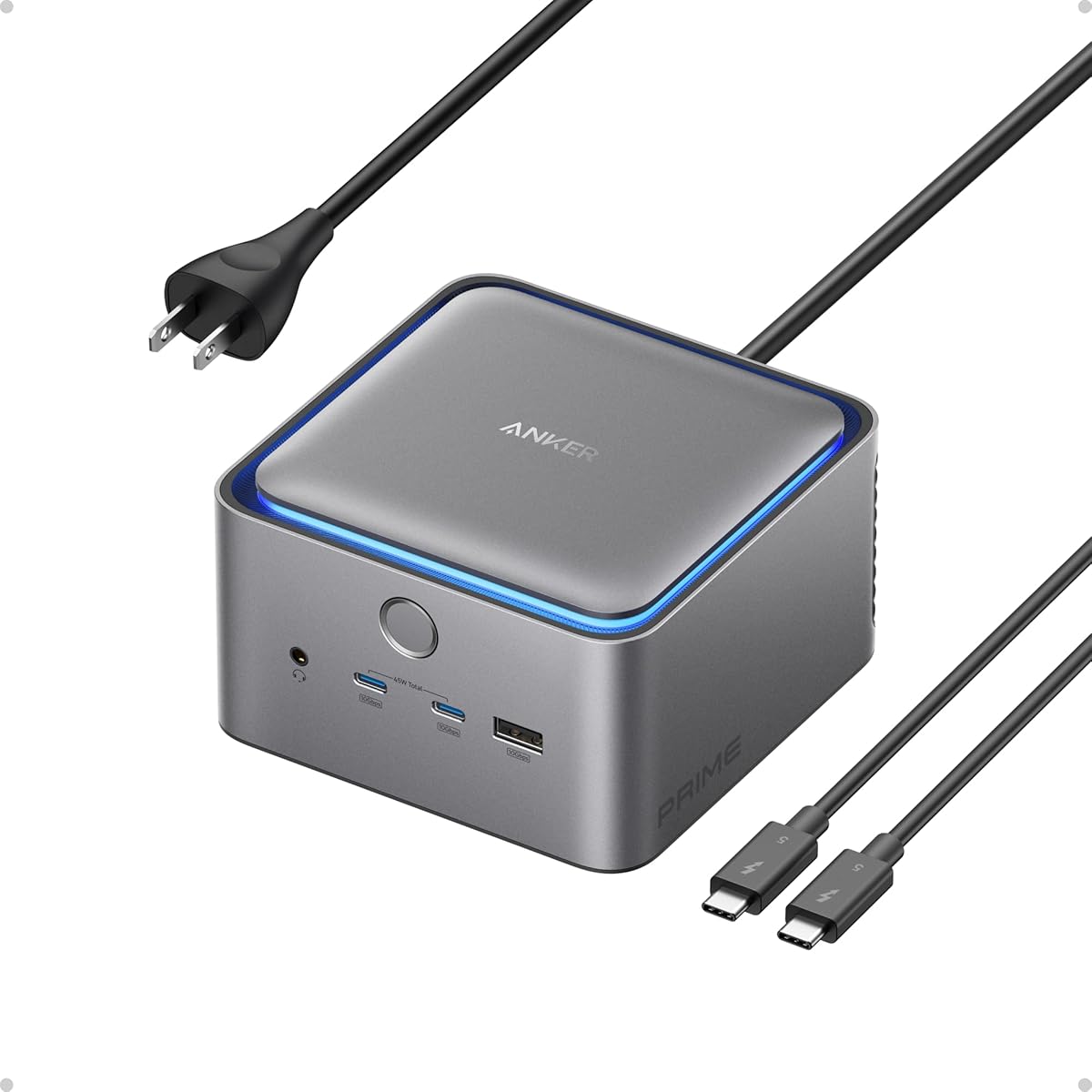
The Anker Prime Docking Station delivers 160W of total output for charging multiple devices. With 14 ports, it handles diverse peripherals efficiently. The dual HDMI ports support up to 2K@60Hz for standard multi-monitor workflows.
We may earn a commission when you buy through this link, at no additional cost to you.
Data transfer speeds up to 10Gbps ensure quick file handling. It supports up to four devices simultaneously for charging. This dock is ideal for power users needing maximum electrical throughput.
It does not support 5120×1440 resolutions. Linux compatibility is not available. However, these are minor constraints for Windows or macOS power users seeking high throughput.
Buy this if you need to charge multiple gadgets and peripherals at once. The high power capacity makes it a strong choice for complex workstations with many connected devices.
With 160W output, the dock can charge four devices simultaneously. This supports complex setups needing power for laptops and accessories.
10Gbps data transfer rates move large files quickly. This reduces wait times during daily workflows involving large datasets.
We may earn a commission when you buy through this link, at no additional cost to you.
This 7-in-2 hub is designed for portability and compactness. It expands two USB-C ports into a multi-function hub. It supports 100W charging and 4K@60Hz video for basic needs.
We may earn a commission when you buy through this link, at no additional cost to you.
The design avoids obstructing the MagSafe port. It works well with newer MacBook Air and Pro models. It is ideal for users who travel frequently and need a simple extension.
It lacks Ethernet and SD card reader slots compared to larger docks. Compatibility notes indicate it may not support MacBook Neo. Verify model compatibility before purchase.
This hub is best for light travel use. If you need only a few extra ports and video output, this compact device saves space in your bag.
Its small form factor makes it easy to carry anywhere. You can keep it in a pocket or small laptop bag.
The multi-function USB-C port supports high data transfer and power. This ensures fast file movement and efficient charging.
We may earn a commission when you buy through this link, at no additional cost to you.
This dock leverages Thunderbolt 5 technology for maximum performance. It supports 8K@60Hz displays and massive file transfers. The active cooling system prevents overheating under full load.
We may earn a commission when you buy through this link, at no additional cost to you.
With 14 ports, it covers every connectivity need. The 140W upstream power ensures efficient charging. It is designed for future-proof setups requiring top-tier bandwidth.
The high price reflects its advanced technology. It may be overkill for average users. However, for professionals, it offers unmatched speed and display capabilities.
Buy this if you need the absolute fastest data and video output. It is the best choice for future-proofing your workstation with leading-edge technology.
Thunderbolt 5 offers the fastest data rates available. This ensures you are not limited by connection speeds.
The active cooling system maintains stable performance. This prevents thermal throttling during long sessions.
We may earn a commission when you buy through this link, at no additional cost to you.
This docking station doubles as a vertical stand for MacBook. It saves desk space while providing dual 4K@60Hz HDMI support. The included 100W charger simplifies setup.
We may earn a commission when you buy through this link, at no additional cost to you.
It features ports for VGA, SD cards, and Ethernet. The stand helps organize cables and improves efficiency. It is designed specifically for MacBook Pro and Air models.
The base may be large for some desks. Compatibility is limited to specific MacBook chip generations. However, the space-saving design appeals to those with limited desk areas.
Ideal for those wanting a clean workspace, this hub combines stand and dock. If you need to free up desk space while adding ports, this is a smart choice.
The vertical stand design saves desk area. This helps organize your workspace efficiently.
The included 100W charger ensures stable power. You do not need to buy a separate adapter.
We may earn a commission when you buy through this link, at no additional cost to you.
This 18-in-2 docking station offers the highest number of ports. It supports dual 4K@60Hz displays and includes a 2.5Gbps Ethernet port. The 150W adapter ensures stable performance.
We may earn a commission when you buy through this link, at no additional cost to you.
With 7 USB-C/A ports, it handles many peripherals. It is ideal for power users needing extensive connectivity. The included cables simplify setup.
Users with M1/M2/M3 chips must note single-monitor limits. Compatibility excludes Neo and Windows laptops. These restrictions target specific high-end models.
This is best for those needing maximum ports. If you have many peripherals and a compatible model, this hub is the most flexible option available.
With 18 ports, you can connect everything at once. This reduces the need for extra adapters.
The 2.5Gbps Ethernet provides stable internet. This is great for high bandwidth needs like streaming.
We may earn a commission when you buy through this link, at no additional cost to you.
This Plugable dock offers Thunderbolt 4 performance with driverless plug-and-play setup. It supports dual 4K HDMI on M4/M5 systems. The aluminum build is durable and stylish.
We may earn a commission when you buy through this link, at no additional cost to you.
With 13 ports, it covers essential connectivity. The 100W charging keeps devices powered. Lifetime support ensures long-term reliability.
Base M1 and M2 MacBooks support single display only. The price is higher than standard hubs. However, the ease of use and support justify the cost.
This dock is best for Mac users avoiding driver issues. If you want reliable Thunderbolt performance with strong support, this is a solid investment.
Plug-and-play convenience means no software downloads. This simplifies the setup process significantly.
Lifetime support provides long-term reliability. You have access to experts for any issues.
We may earn a commission when you buy through this link, at no additional cost to you.
Selecting the right docking station requires understanding your specific connectivity and performance needs. This guide covers essential factors to consider before making a purchase decision.
Check the supported resolutions and refresh rates for your monitors. Some docks support dual 4K at 60Hz while others limit to 30Hz or single display. Ensure compatibility with your MacBook model, as some chips restrict multi-monitor setups.
Look for HDMI and DisplayPort options that match your external displays. If you need high refresh rates, verify the dock supports the specific bandwidth required.
Power delivery ensures your laptop charges while connected. Aim for at least 65W pass-through, ideally 100W for larger MacBook models. This prevents battery drain during intensive use.
Confirm the total power output can handle your laptop and accessories. Some docks offer multiple USB-C ports to charge additional devices simultaneously.
List the peripherals you need to connect regularly. A good dock should have enough USB-A, USB-C, and SD card slots to avoid extra adapters. Ethernet ports are vital for stable network connections.
Consider both front and rear ports for easy access. Ensure the total port count matches your daily workflow requirements.
USB 3.0, 3.1, or 3.2 standards dictate file transfer speeds. Look for 5Gbps or higher for external drives and peripherals. Faster speeds improve productivity during file-heavy tasks.
Check if specific ports support the highest speeds. Some hubs have mixed ports with varying performance levels.
Aluminum shells provide better heat dissipation than plastic. Active cooling fans may be present in high-performance docks. Durable construction ensures longevity under daily use.
Consider the physical footprint to ensure it fits your desk. A compact design helps maintain a tidy workspace.
Verify the dock supports your specific MacBook model and chip generation. Some devices restrict features like dual displays on base chips. Ensure the manufacturer lists your laptop explicitly.
Check for firmware or driver requirements. Plug-and-play options are preferred to avoid software installation issues.
A minimum 18-month warranty is standard. Lifetime support is a bonus for high-end models. Check customer service responsiveness and replacement policies.
Look for brands with strong reputations for reliability. Good support adds value if technical issues arise.
Prices vary from budget hubs to premium docks. Determine what features you truly need versus nice-to-haves. Investing slightly more often improves stability and lifespan.
Compare value based on included accessories like adapters or cables. A complete package may offer better long-term savings.
Always connect the dock to power before linking your laptop. This ensures the dock initializes correctly and provides stable power delivery. Connect your display and peripherals before turning on the system.
Regularly check ports for dust or debris. Use a soft brush to clean connectors and prevent connectivity issues. Avoid forcing cables into ports to prevent damage to the internal pins.
Keep your dock in a cool environment to prevent overheating. Ensure vents are unblocked if your model has active cooling. This extends the lifespan of the internal components.
Yes, you can use a docking station with MacBook Neo, but check compatibility notes. Some docks may not support all features like dual displays on older chips. Verify the manufacturer lists MacBook Neo explicitly in the supported models list.
Not all docking stations support dual monitors. Some require Thunderbolt connections or specific macOS configurations. Base M1, M2, and M3 chips often support only one external display regardless of the dock.
For most MacBook models, 65W is the minimum, but 100W is ideal. Ensure the dock supports power delivery pass-through to charge your laptop while connected. Higher wattage is needed for larger MacBook Pro models under heavy load.
Most modern USB-C hubs are plug-and-play without drivers. However, some high-performance Thunderbolt docks may require specific drivers. Check product details to confirm if software installation is necessary for your OS.
A quality dock does not significantly slow down data transfer. Cheap or low-speed hubs may limit USB 3.0 ports to slower speeds. Ensure the dock supports USB 3.1 or 3.2 for optimal performance.
Yes, docks with Ethernet ports allow wired internet connections. This is ideal for stable network performance. Check the speed rating, such as Gigabit or 2.5Gbps, for your needs.
A good docking station can last several years with proper care. Heat management and avoiding port damage are key factors. Look for models with warranties of at least 18 months for peace of mind.
Selecting the right docking station depends on balancing your needs for displays, ports, and charging. The top picks offer reliable solutions for various budgets and performance requirements.
Focus on video output and power delivery first. Ensure the dock supports your specific MacBook model and desired resolution to avoid compatibility issues.
Always verify current product availability and prices before purchasing. Deals may change over time, and checking the latest details ensures you get the best value for your investment.